

Download Distribution List Master Onboarding Form
When you onboard a new employee, if you would like them added to specific email distribution lists, you must complete the attached form and submit it to IT at [email protected]. You are strongly encouraged to complete the form.
Please note the following regarding distribution lists –
- We recommend you submit the attached form to IT once you have an official start date for your new employee.
- The lists on the form are department/vertical specific. Your employee will automatically be added to general email lists such as, “Durham”, “Memphis” or “All Employee” lists as applicable.
- Email distribution lists are primarily meant for mass communications, across full departments/verticals. They are not meant for a manager to communicate with their direct hires.
- If you would like to create your own personal “distribution list” for your team, please follow the instructions listed at the very bottom of this page.
- You may also find it helpful to create a Teams site to allow for communication along with file storage, etc. Tutorials on how to use Teams can be found via OKTA > IT Wiki tile > Teams
- If you have an employee that is terminated, you do not need take any action regarding distribution lists they are a part of. This will automatically be disabled with the rest of their system access.
INSTRUCTIONS TO CREATE A PERSONAL DISTRIBUTION LIST:
- Look for the “Quick Steps” section of your Outlook Inbox Toolbar
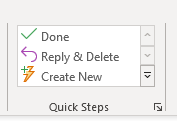
- Click “Create New”
- Name your List
- In the “Actions” drop down, select “New Message” in the “Respond” section
- Click the “To” button and find the people you would like included in your list.
- Click “Finish”
- Your new list will now appear in your “Quick Steps” Box
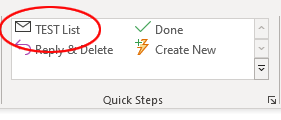
- To send an email to that group, click on the name of the list and a new message will appear with your group in the “To:” line.